
If you’re trying to adjust brightness, contrast, or any other display setting on your ASUS monitor but see a “OSD Locked” message, don’t worry—you’re not alone. Many ASUS monitors come with a feature called OSD Lock (On-Screen Display Lock), which prevents accidental changes to your monitor settings. While useful, it can be frustrating if you don’t know how to disable it. Follow this guide to learn how to Unlock the OSD.
In this guide, we’ll walk you through what OSD Lock is, why it happens, and how to unlock the menu on your ASUS monitor. You’ll also learn how to Unlock the OSD.
What is OSD Lock?
How to Unlock the OSD
By following the steps outlined, you will easily be able to Unlock the OSD and make necessary adjustments to your display settings.
To successfully Unlock the OSD, follow these simple steps for your ASUS monitor.
OSD stands for On-Screen Display, the control menu that lets you change settings such as:
- Brightness and contrast
- Color settings
- Input source
- Audio settings (on supported monitors)
The OSD Lock function ensures these settings can’t be changed accidentally—for example, if you brush against the monitor’s buttons.
How to Unlock the OSD on an ASUS Monitor
Unlocking the menu is simple and only takes a few seconds. The steps may vary slightly depending on your ASUS monitor model, but here’s the general method:
Method 1: Use the Menu Button
- Locate the Menu button (usually found on the side or bottom of the monitor).
- Press and hold the Menu button for about 5 seconds.
- The “OSD Locked” message should disappear, and your menu will unlock.
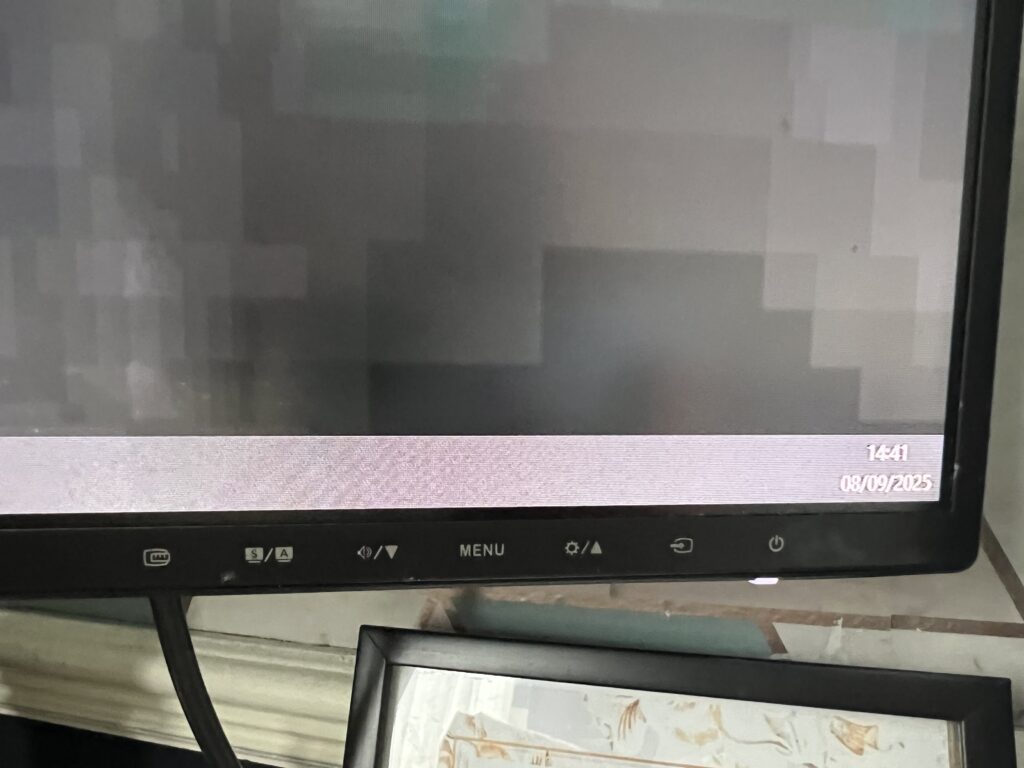
Method 2: Using Other Control Buttons
- Some ASUS models require holding down a different button such as the Input/Select or Arrow button for 5–10 seconds.
- Check your user manual if Method 1 doesn’t work.
How to Lock the OSD Again (Optional)
If you want to re-enable OSD Lock (to prevent accidental changes):
- Open the OSD menu.
- Navigate to System Setup → OSD Setup.
- Select OSD Lock and turn it On.
Troubleshooting Tips
- Still locked? Power off the monitor, unplug it for a minute, then try again.
- No physical buttons working? Some ASUS monitors with a joystick-style controller require pressing and holding the joystick inward for a few seconds.
- Lost your manual? You can download your monitor’s manual from the ASUS support website.
Final Thoughts
The OSD Lock feature on ASUS monitors is designed to protect your display settings, but unlocking it is quick once you know the right button combo. By holding the Menu button (or joystick) for a few seconds, you’ll regain access to all the display settings you need.
So the next time your ASUS monitor shows “OSD Locked”, you’ll know exactly how to fix it.